
01 · Overview
About Ovenbird
Ovenbird is a Linux application for the GNOME desktop that combines a LaTeX document editor with a local BibTeX reference library. Project files remain in common formats such as .tex and .bib, in the folder chosen by the person using the app.
The application offers Code and Visual modes for editing LaTeX documents. The reference library is independent of any one project: you can add references, search and filter them, import .bib files, and export a BibTeX copy.
02 · Installation
Requirements and installation
- The published file is a free Flatpak package for Linux x86_64.
- Flatpak must be installed and configured. The package uses the runtime
org.gnome.Platformversion 51. The installation file does not include this runtime, so Flatpak may need to download it from a source configured on your system. - The Flatpak version 0.4.0 includes Tectonic for compiling documents. The first compilation may need to download supporting files for the LaTeX engine.
If Flatpak is not set up yet, follow the Flatpak setup instructions for your system. The official documentation for single-file Flatpak bundles explains how to install one directly and notes that this package type does not include its dependencies.
Download Ovenbird 0.4.0 for Linux x86_64
- Download the file Ovenbird-0.4.0-x86_64.flatpak.
- If it is in your Downloads folder, open a terminal and run:
flatpak install --user "$HOME/Downloads/Ovenbird-0.4.0-x86_64.flatpak"- Confirm the installation when prompted. Then open Ovenbird from your system's applications menu.
If the file is in another folder, replace the command's path with the location where you saved it. To launch the app from a terminal after installation, run flatpak run io.github.diegopn.ovenbird.
03 · Projects
First launch and projects
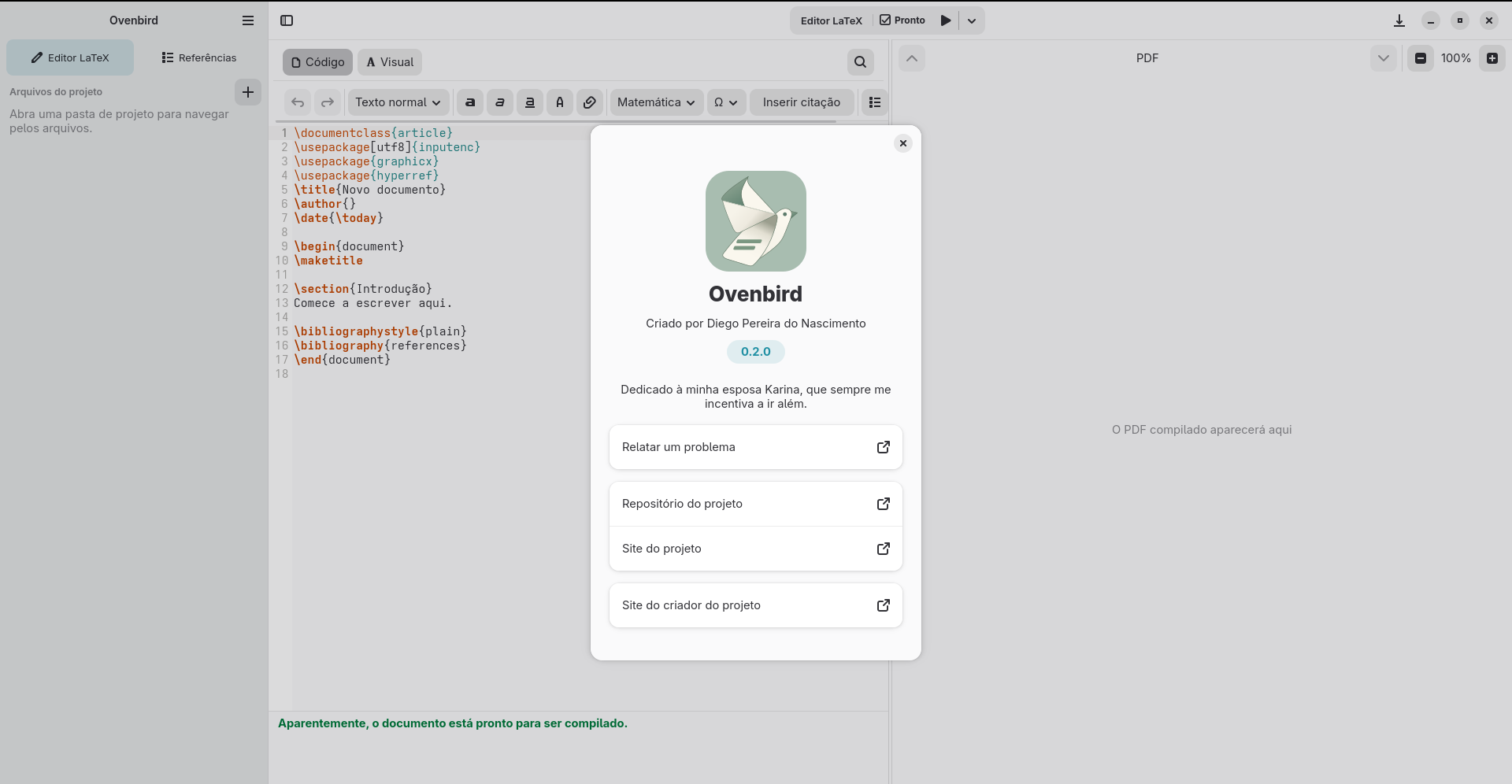
On first launch, Ovenbird opens in the editor with no project selected. By default, it tries to reopen the last project used on subsequent launches. You can change this behavior in Preferences.
Create a project
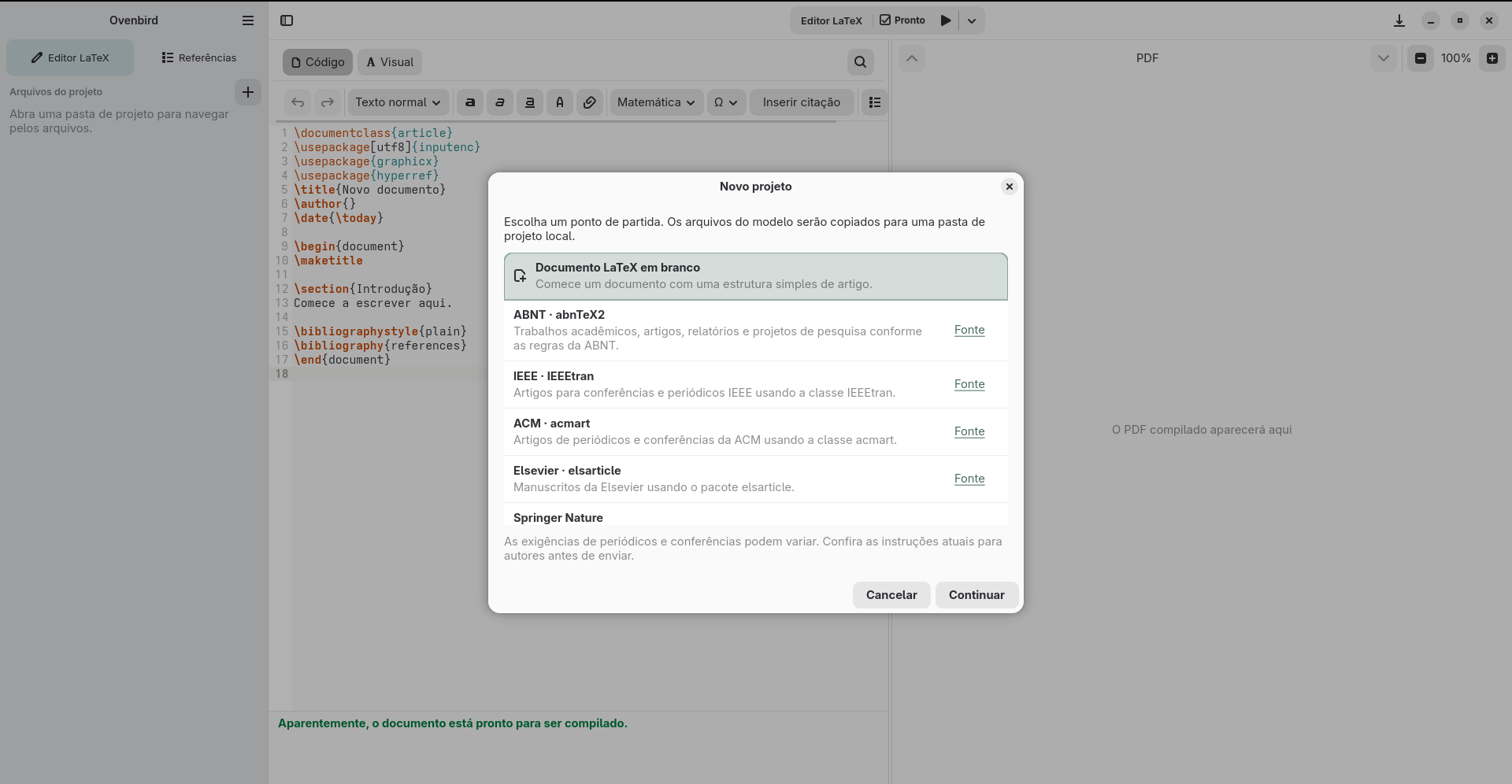
- Choose New Project from the application menu, or press Ctrl+Alt+N.
- Select a blank document or one of the included templates: ABNT, IEEE, ACM, Elsevier, or Springer Nature.
- Choose the folder where the project will be created, enter a name, and confirm with Create.
The application creates a project folder with the files for the selected starting point. Templates provide a starting structure; check the current guidelines of the institution or publication your document is for.
Open a project or document
To open a project folder, choose Open Project or Ctrl+Alt+O. To open a single file, choose Open Document or press Ctrl+O.
Startup preferences
Open the application's main menu and choose Preferences . Under Open on startup, choose between the LaTeX editor and reference library. The Reopen the last project on startup option is enabled by default; turn it off if you prefer to start without restoring the previous project.
Preferences also let you choose the theme Automatic, Light or Dark and set the starting folder for file dialogs. By default, they open in Downloads. Choose Choose Folder to select another folder, or Reset to restore the default.
04 · Editing
Edit and compile your document
Open a .tex or .bib from the project file list. Press Ctrl+S to save and Ctrl+F to find text in the open file.
For .tex files: Code and Visual modes
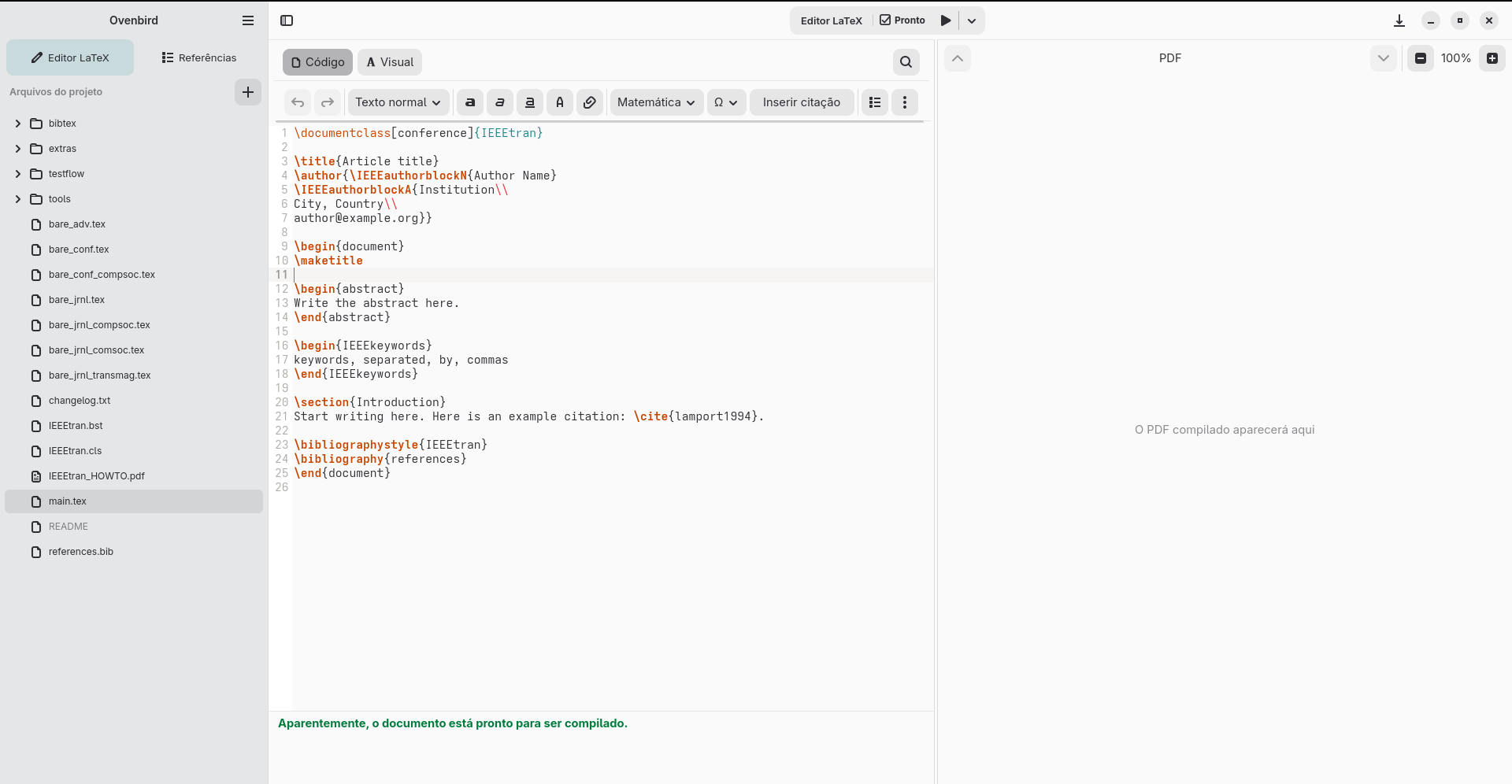
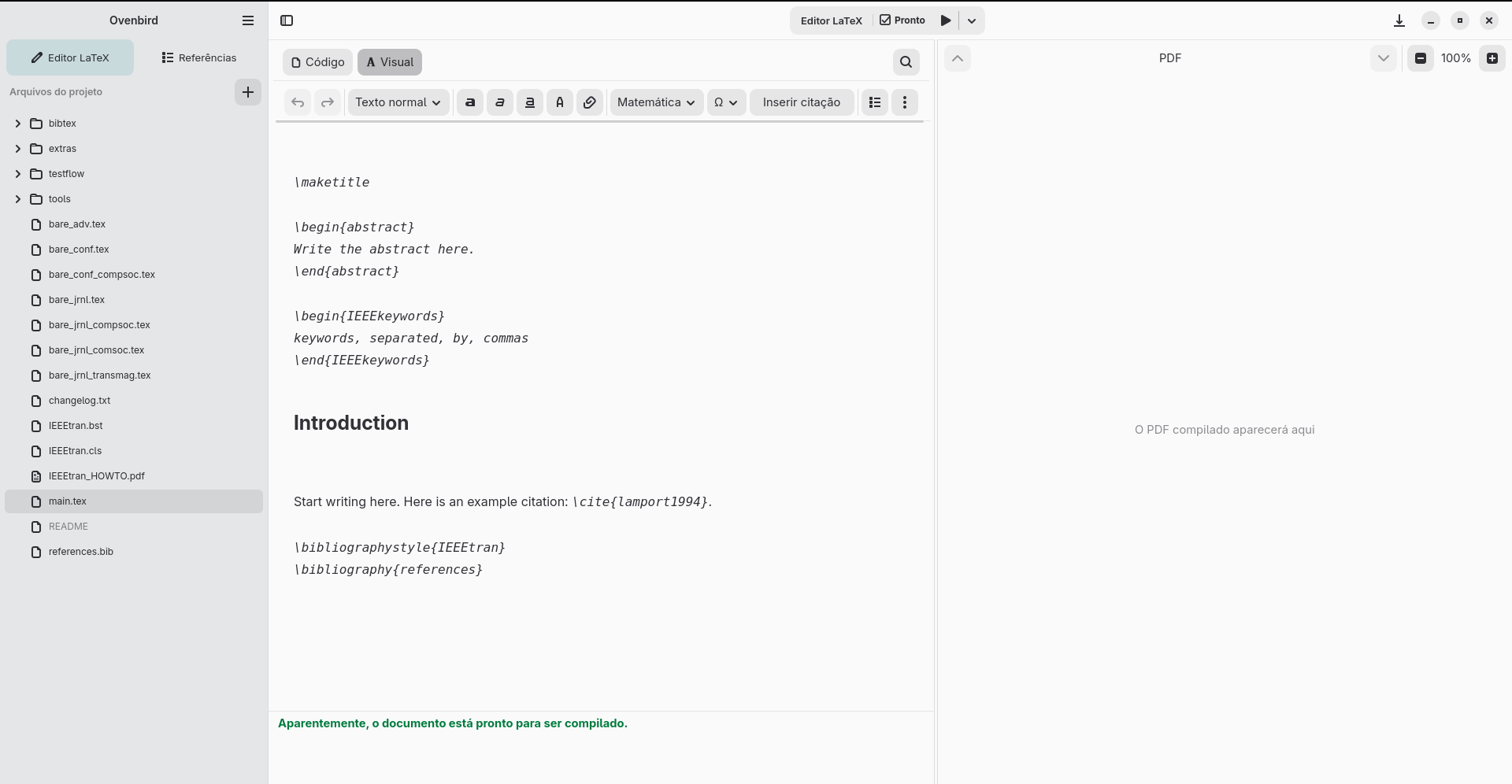
The Code mode edits LaTeX source; the Visual mode provides formatted editing of the same document. To open Visual mode, the file must contain \begin{document} and \end{document}. Visual mode supports a subset of the LaTeX commands and environments implemented by the application.
If a section does not appear in Visual mode, switch back to Code mode to review and edit the source. Code mode is also where you can work directly with LaTeX commands that have no visual representation.
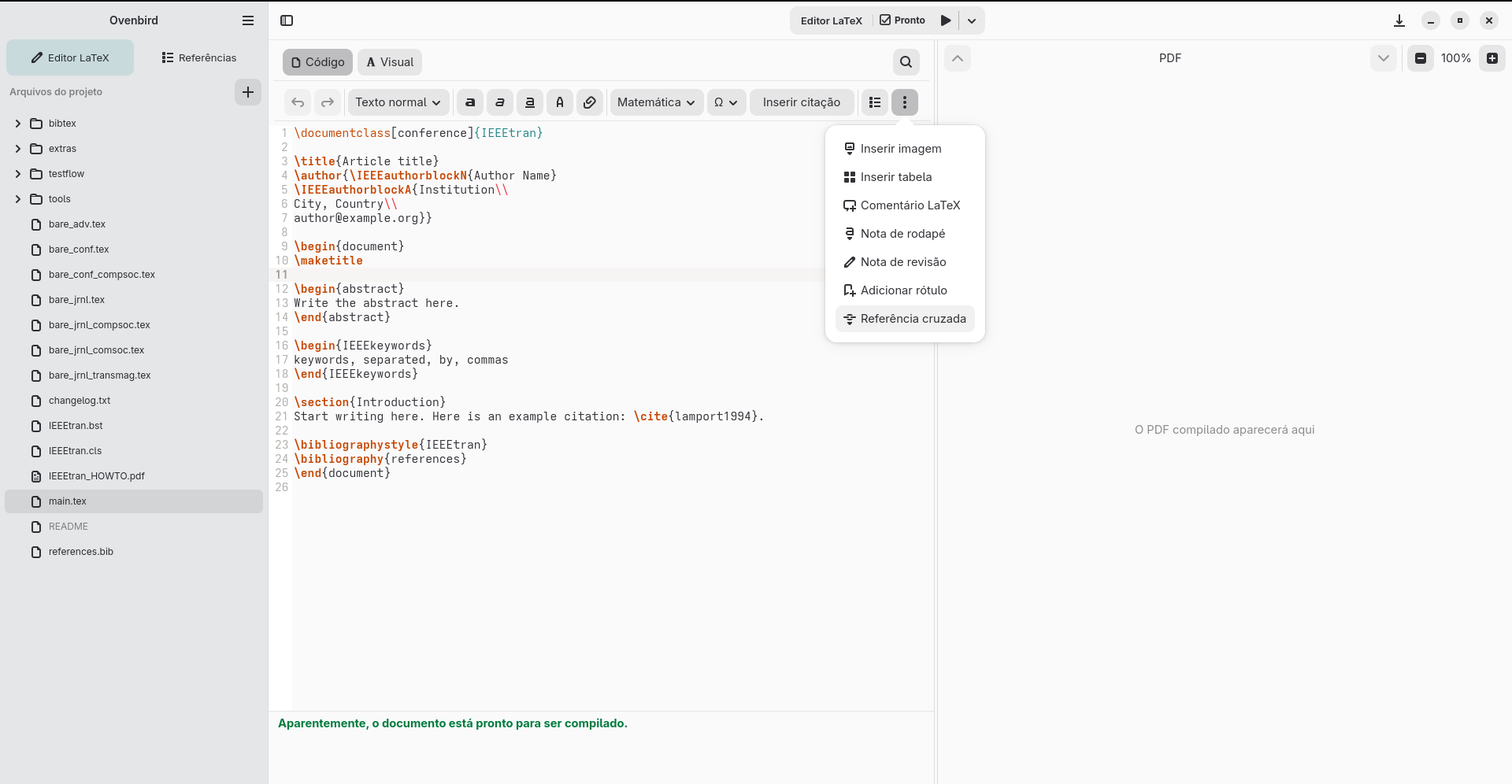
The LaTeX editor toolbar provides undo and redo, paragraph styles, bold, italic, underline, monospace, and link insertion. Menus include math, symbols, lists and indentation, as well as citations. Under More options, you can insert an image or table, a LaTeX comment, footnote, review note, label, or cross-reference.
For .bib files: BibTeX editing
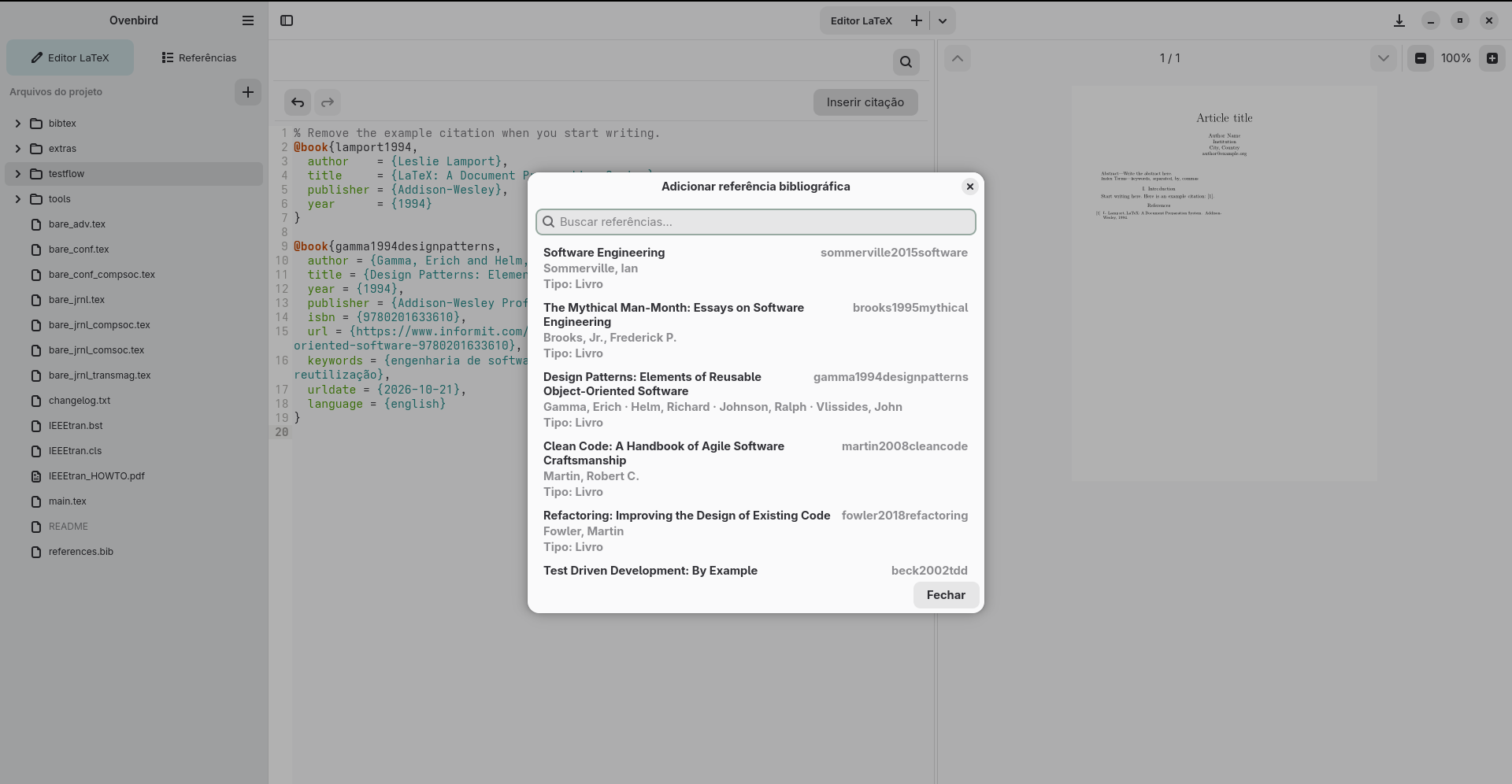
A .bib in a project is edited directly as BibTeX text; it does not have a Visual mode. With a .bib open, the action Add bibliographic reference lets you search the local library and insert the selected entry into the open file. This lets you keep in the project the entries used by the LaTeX document.
Compile and view the PDF
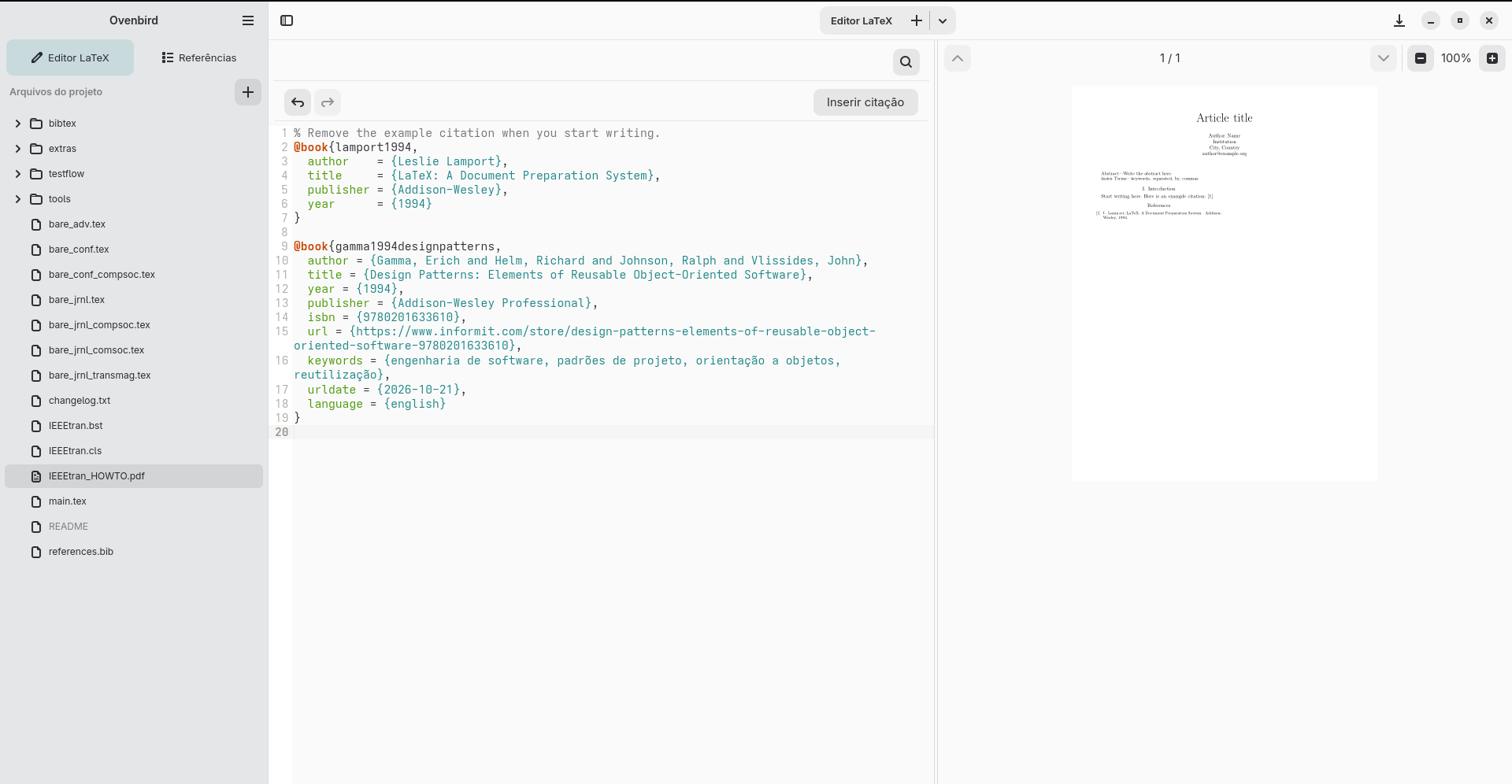
Use Compile or press the shortcut Ctrl+Shift+R. Ovenbird looks for latexmk, pdflatex or Tectonic; Flatpak version 0.4.0 includes Tectonic. After a successful compilation, the PDF appears in the preview area. Check the compilation status for error messages.
05 · References
Organize the BibTeX library
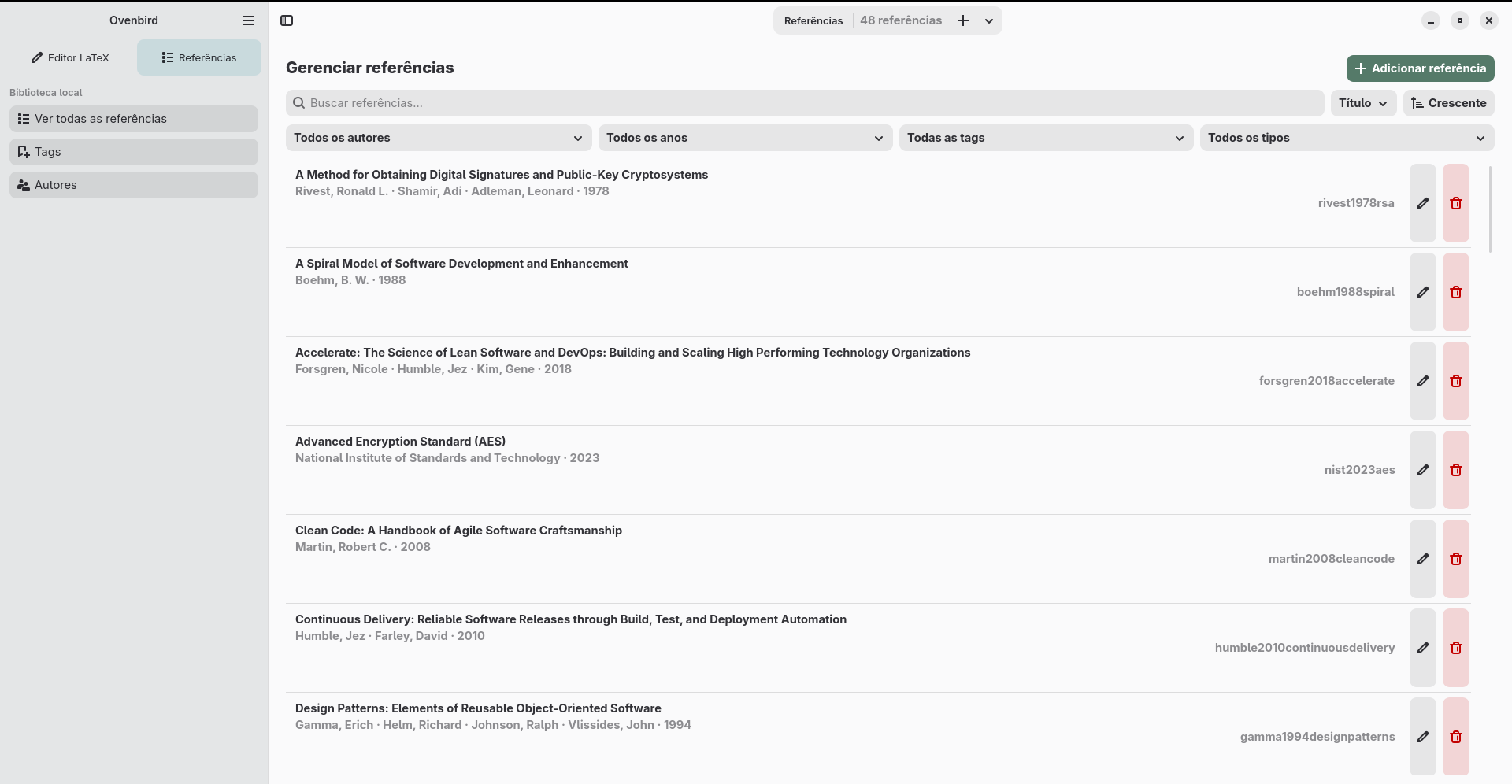
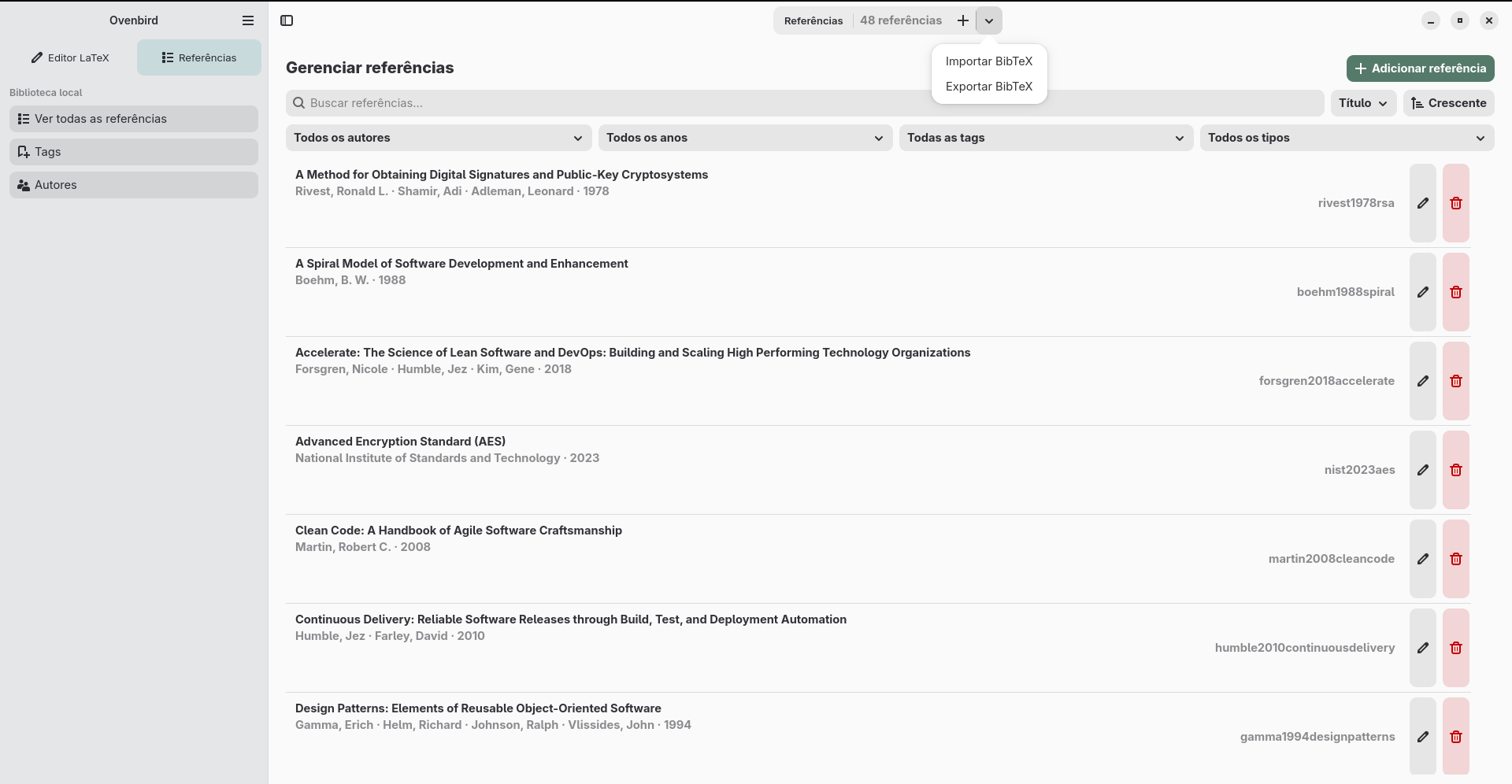
Open References in the sidebar to open the local library. Search the records and filter by author, year, tag, or type. You can also sort by title, author, year, or tag in ascending or descending order.
Adding and managing references
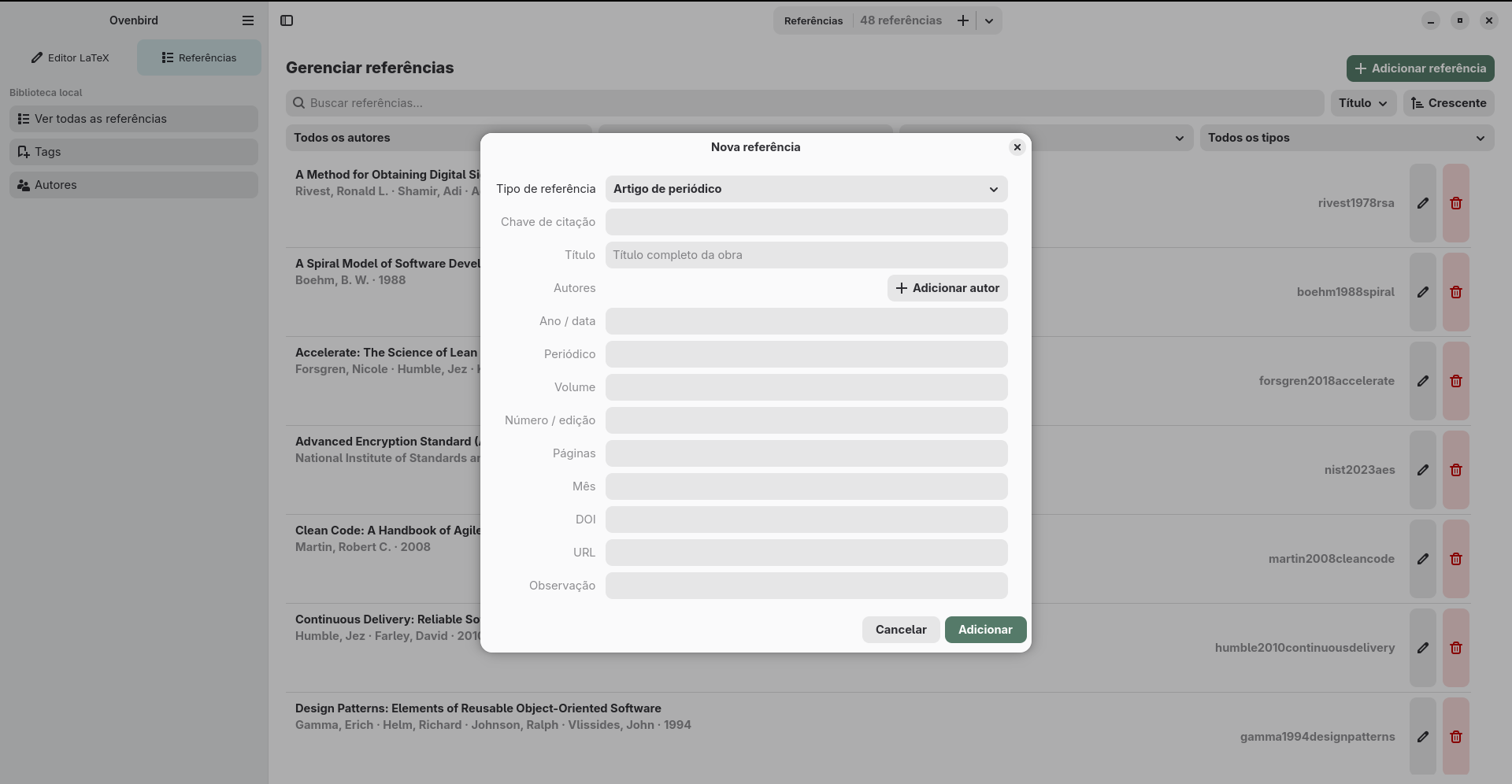
Use Add reference to choose the record type and enter its citation key, title, authors, and date. Fields vary by type; for example, a journal article form also includes journal, volume, issue or number, pages, month, DOI, URL, and note. After saving, records can be edited or removed from the list.
References can have tags. When creating or editing a record, select existing tags or create new ones; then use the tag filter in the list to find matching records.
Insert citations
- Insert citation: in a saved LaTeX document, use the action or press Ctrl+Shift+C to search the library. Citation inserts the BibTeX key in the document; Bibliographic reference inserts a formatted reference.
The local library is independent of each project's files. For a citation key to be found during compilation, the corresponding entry must be in a project .bib file declared in the main document using \bibliography{...} or \addbibresource{...}. The local library is not automatically included in compilation. In a project .bib file open in the editor, choose Add bibliographic reference to copy an entry from the local library into that file.
Tags and authors
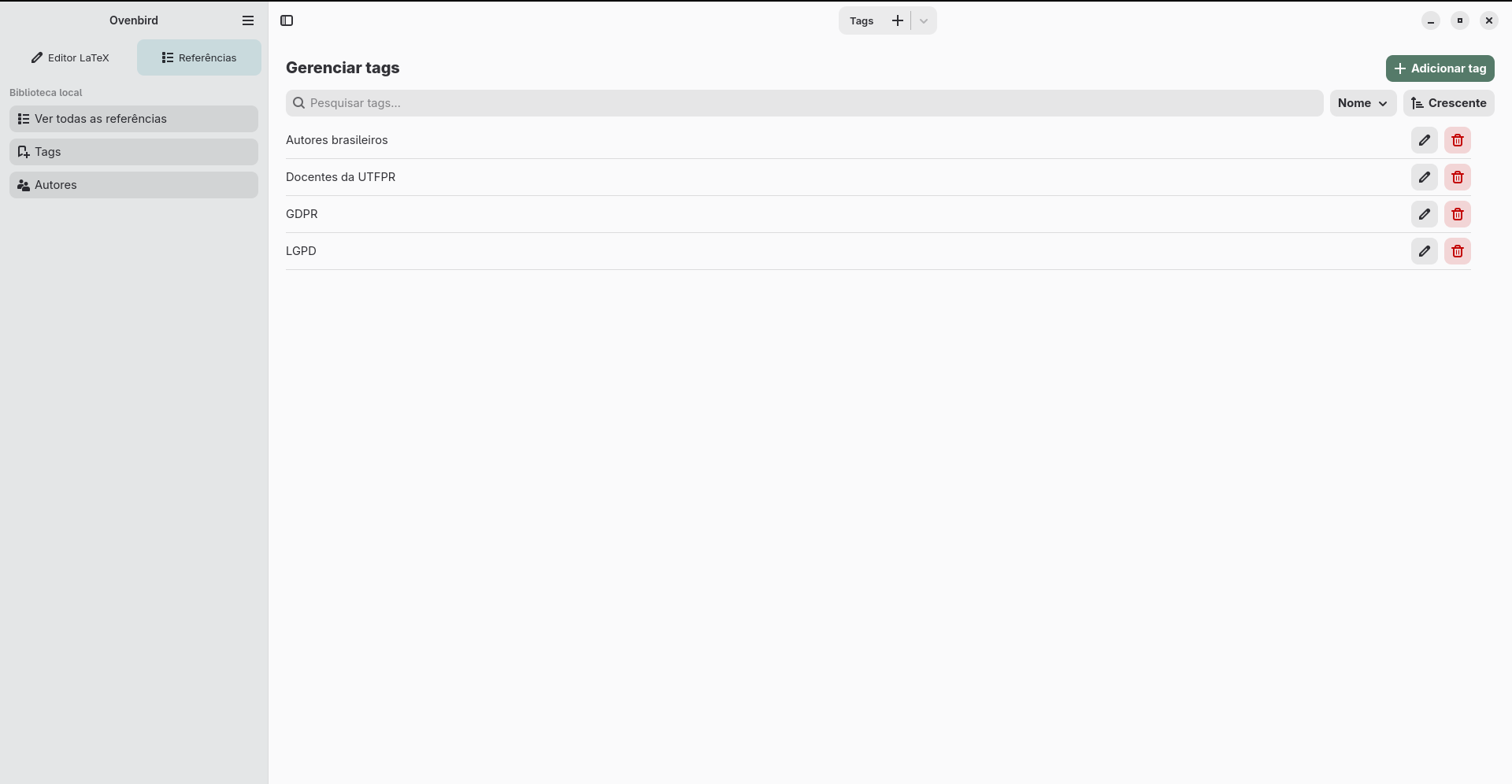
In Tags, search by name, sort the list, and add, edit, or remove tags. Use them to classify and filter records in the library.
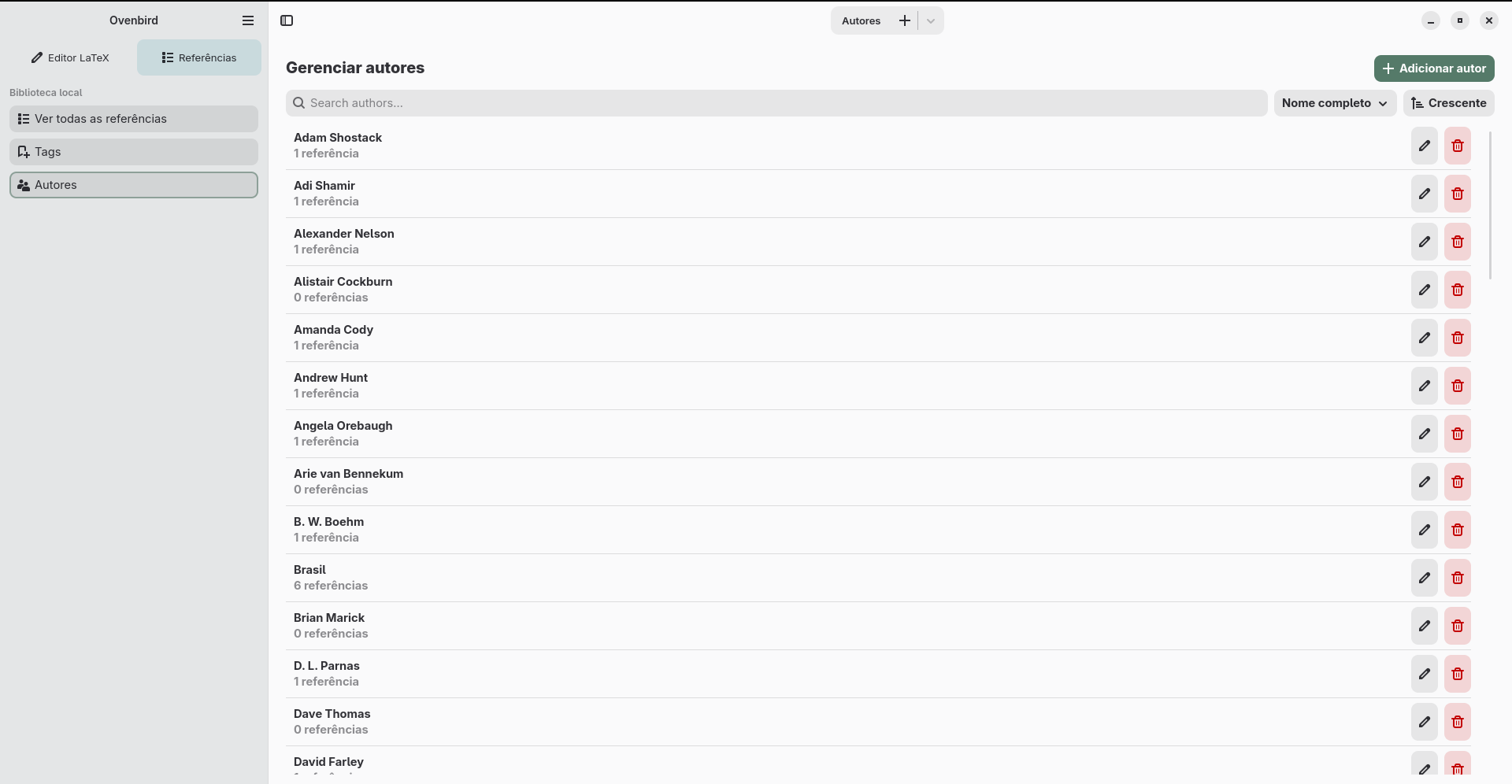
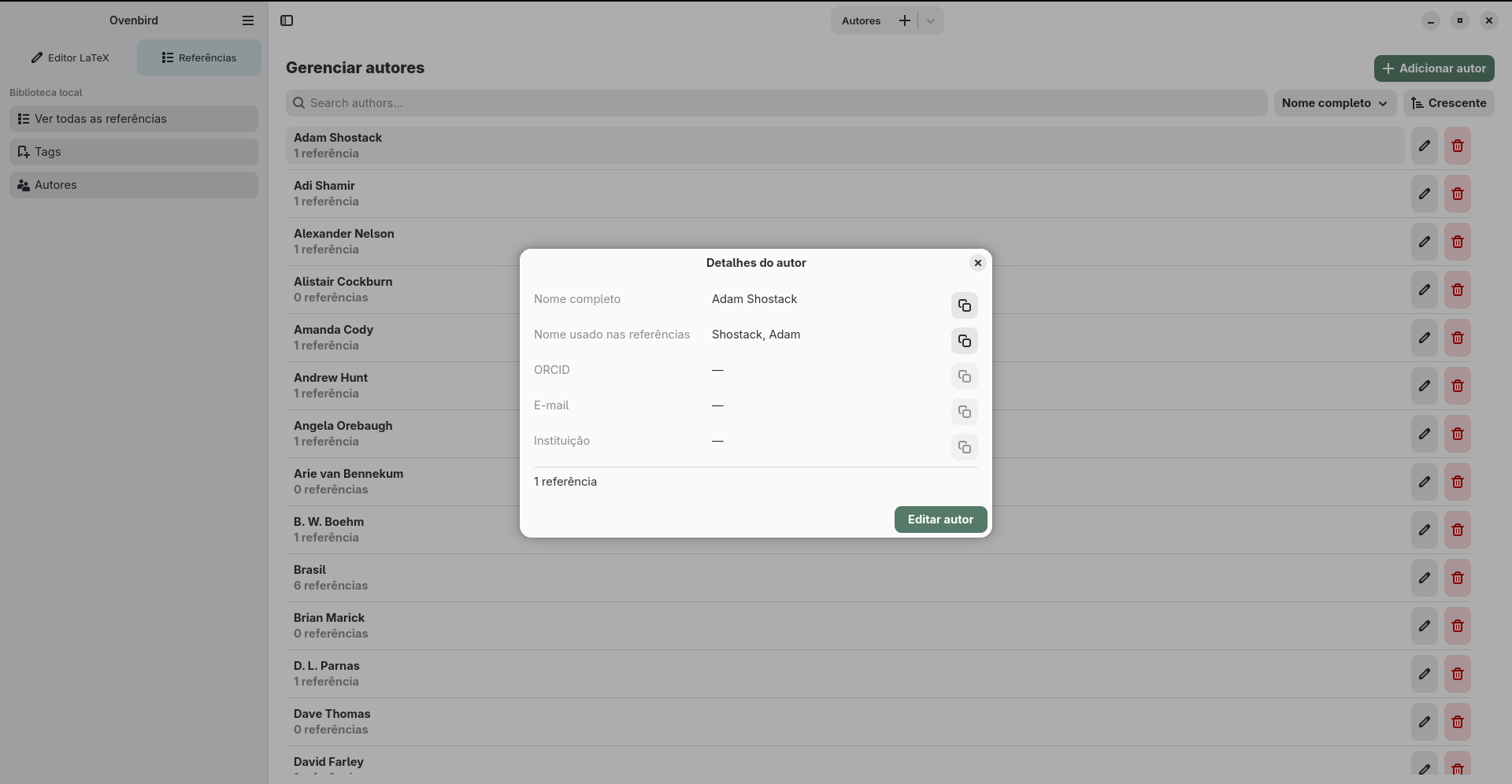
In Authors, search and sort by full name or institution. Each row shows how many references are associated with the author; controls let you add, edit, or remove author records. Open the details to view the full name, name used in references, ORCID, email, and institution.
06 · Transfer
Import and export references
The exchange is manual and uses a file. Ovenbird currently supports only BibTeX (.bib) for this workflow; there is no account connection or automatic synchronization. BibTeX transfers bibliographic data, and fields may be mapped differently. PDFs and other attachments, notes, and collections are not guaranteed to transfer. During import, Ovenbird skips references whose citation keys already exist and does not update those records.
Import into Ovenbird
Export the whole library, a collection, or selected references from the source platform as a BibTeX (.bib) file. Then, in Ovenbird, open References → Import references → BibTeX (.bib) and select the file.
Zotero
From the platform to Ovenbird: To export the whole library, use File → Export Library… or the equivalent action in the library’s context menu. For a collection, right-click it and choose Export Collection…; for selected items, right-click the selection and choose Export Items…. Choose BibTeX and save the .bib file.
Official sources: importing standardized formats · exporting data · field mappings.
JabRef
From the platform to Ovenbird: JabRef works directly with BibTeX libraries. Save or copy the .bib library file you want to transfer, then select it in Ovenbird’s importer.
Official source: BibTeX and BibLaTeX in JabRef.
Mendeley Reference Manager
From the platform to Ovenbird: Select references in Mendeley Reference Manager, choose Export in the action panel, select BibTeX (.bib), and save the file.
Official sources: importing references · exporting a library.
Export from Ovenbird
In Ovenbird, open References → Export references → BibTeX (.bib) and save the file. Then import or open it in the destination platform using the steps below.
Zotero
From Ovenbird to Zotero: In Zotero, use File → Import… → A file and choose the .bib file exported by Ovenbird. Menu labels may be translated in your interface.
JabRef
From Ovenbird to JabRef: Open the .bib file exported by Ovenbird directly in JabRef as a BibTeX library.
Mendeley Reference Manager
From Ovenbird to Mendeley Reference Manager: In Mendeley Reference Manager, choose Add New → Import Library, select BibTeX, and open the .bib file exported by Ovenbird.
07 · Data
Where files are stored and how to make backups
Each project's documents and files are stored in the folder chosen when the project is created or opened. The application library and settings are stored separately from project files.
In a standard Flatpak installation, local data is stored under ~/.var/app/io.github.diegopn.ovenbird/data/ovenbird/. This folder contains the library library.bib and supporting tag and author files such as tags.json, authors.json and author_profiles.json. Settings are stored in ~/.var/app/io.github.diegopn.ovenbird/config/ovenbird/settings.json.
For a complete backup, close Ovenbird and copy the entire project folder, along with the data/ovenbird/ and config/ovenbird/ folders at these paths. To keep only a portable copy of your references, use Export references and save the .bib file somewhere else.
Flatpak uses separate data and configuration directories for each application. See the Flatpak documentation about XDG directories..
08 · Troubleshooting
Common issues
The last project cannot be reopened
If the project folder was moved or removed, Ovenbird cannot restore it at startup. Open the folder again with Open Project or Ctrl+Alt+O . You can also turn off Reopen the last project on startup in Preferences.
The package will not install
Check that Flatpak is installed and configured and that your system can obtain the GNOME Platform 51 runtime required by the package. The .flatpak file does not include dependencies, so installation may need to download them from a configured Flatpak source.
Compilation reports that no LaTeX engine was found
The published package includes Tectonic. If you are using a build installed another way, Ovenbird also looks for latexmk and pdflatex. The first compilation with Tectonic may need to download supporting files.
Visual mode will not open the document
Use Visual mode with a .tex file that contains \begin{document} and \end{document}. To work with macros or structures not represented in this mode, switch back to Code mode.
The bibliography will not compile or a citation is not inserted
Save the LaTeX document before inserting a citation. For bibliography errors, check the compilation message and whether the required engine is available: documents that use BibTeX need that support; documents with biblatex may need Biber, latexmk, or Tectonic.
If the problem continues, note your system, the step that failed, and the message shown in the project issue form.
09 · Details
Software and manual details
Software documented in this manual
- Name
- Ovenbird
- Software developer
- Diego Pereira do Nascimento
- Documented version
- 0.4.0
- Platform and package
- Linux · GNOME Platform 51 · Flatpak x86_64
- Application license
- GNU GPL version 3 or later (GPL-3.0-or-later)
- Technologies
- Rust · GTK 4 · Libadwaita · GtkSourceView
Manual authorship and edition
- Manual author
- Diego Pereira do Nascimento · ORCID 0009-0008-6487-9890
- Manual edition
- 1st edition
- Application version described
- 0.4.0
- This edition updated
- First repository record
- October 9, 2026
- Original website publication
- Unconfirmed; the first repository history entry does not prove when the page was published.
Project links
To save this manual as a PDF, use your browser's print option and choose “Save as PDF”.